

部署环境:
系统Debian 12 (hyper-v虚拟机)
CPU:4核 ,内存 8GB ,硬盘:240GB
一、 安装1pannel
1. 安装必要工具 (curl)
首先确保你的系统安装了 curl,以便下载安装脚本。 在终端执行:
apt install curl -y2. 运行一键安装脚本
1Panel 官方提供了优化的安装命令。复制并运行以下命令:
bash -c "$(curl -sSL https://resource.fit2cloud.com/1panel/package/v2/quick_start.sh)"Select a language:
1. English
2. Chinese 中文(简体)
3. Persian
4. Português (Brasil)
5. Русский
Enter the number corresponding to your language choice: 输入1 回车
██╗ ██████╗ █████╗ ███╗ ██╗███████╗██╗
███║ ██╔══██╗██╔══██╗████╗ ██║██╔════╝██║
╚██║ ██████╔╝███████║██╔██╗ ██║█████╗ ██║
██║ ██╔═══╝ ██╔══██║██║╚██╗██║██╔══╝ ██║
██║ ██║ ██║ ██║██║ ╚████║███████╗███████╗
╚═╝ ╚═╝ ╚═╝ ╚═╝╚═╝ ╚═══╝╚══════╝╚══════╝
[1Panel 2025-12-21 19:34:59 install Log]: ======================= Starting Installation =======================
Set 1Panel installation directory (default is /opt): 直接回车
[1Panel 2025-12-21 19:35:06 install Log]: The installation path you selected is /opt
Docker is not installed. Do you want to install it? [y/n]: 输入y确认
================================================================================
[1Panel 2025-12-21 19:36:45 install Log]: … start docker
Synchronizing state of docker.service with SysV service script with /lib/systemd/systemd-sysv-install.
Executing: /lib/systemd/systemd-sysv-install enable docker
[1Panel 2025-12-21 19:36:46 install Log]: Docker installed successfully
Set 1Panel port (default is 36264): 设置1pannel的端口,若无需更改直接回车
[1Panel 2025-12-21 19:37:47 install Log]: The port you set is: 36264
Set 1Panel secure entrance (default is 1ba197b557): 设置1pannel的路径,若无需更改直接回车
[1Panel 2025-12-21 19:37:55 install Log]: The panel secure entrance you set is 1ba197b557
Set 1Panel panel user (default is 8aff23857b): 设置管理员用户,若无需更改直接回车
[1Panel 2025-12-21 19:37:59 install Log]: The panel user you set is 8aff23857b
[1Panel 2025-12-21 19:37:59 install Log]: Set 1Panel panel password, press Enter to continue after setting (default is 682125d521):设置管理员密码,若无需更改直接回车
[1Panel 2025-12-21 19:38:11 install Log]: Configuring 1Panel Service
Created symlink /etc/systemd/system/multi-user.target.wants/1panel-agent.service -> /etc/systemd/system/1panel-agent.service.
Created symlink /etc/systemd/system/multi-user.target.wants/1panel-core.service -> /etc/systemd/system/1panel-core.service.
[1Panel 2025-12-21 19:38:11 install Log]: Starting 1Panel service
[1Panel 2025-12-21 19:38:11 install Log]: 1Panel service has started successfully. Continuing with post-setup tasks, please wait…
[1Panel 2025-12-21 19:38:36 install Log]: =================Thank you for your patience, installation is complete==================
[1Panel 2025-12-21 19:38:36 install Log]:
[1Panel 2025-12-21 19:38:36 install Log]: Please access the panel using your browser:
[1Panel 2025-12-21 19:38:36 install Log]: External address: http://你的公网地址:端口/路径
[1Panel 2025-12-21 19:38:36 install Log]: Internal address: http://你的内网地址:端口/路径
[1Panel 2025-12-21 19:38:36 install Log]: Panel user: 你前面设置的用户名
[1Panel 2025-12-21 19:38:36 install Log]: Panel password: 你前面设置的密码
[1Panel 2025-12-21 19:38:36 install Log]:
[1Panel 2025-12-21 19:38:36 install Log]: Official website: https://1panel.hk
[1Panel 2025-12-21 19:38:36 install Log]: Project documentation: https://docs.1panel.hk
[1Panel 2025-12-21 19:38:36 install Log]: Code repository: https://github.com/1Panel-dev/1Panel
[1Panel 2025-12-21 19:38:36 install Log]: Join the 1Panel community on Discord for support and discussions: https://discord.gg/bUpUqWqdRr
[1Panel 2025-12-21 19:38:36 install Log]:
[1Panel 2025-12-21 19:38:36 install Log]: If you are using a cloud server, please open the port in the security group 36264
[1Panel 2025-12-21 19:38:36 install Log]:
[1Panel 2025-12-21 19:38:36 install Log]: For your server security, you will not be able to see your password again after leaving this screen, please remember your password.
[1Panel 2025-12-21 19:38:36 install Log]:
[1Panel 2025-12-21 19:38:36 install Log]: ================================================================
浏览器打开 http://你的内网地址:端口/路径
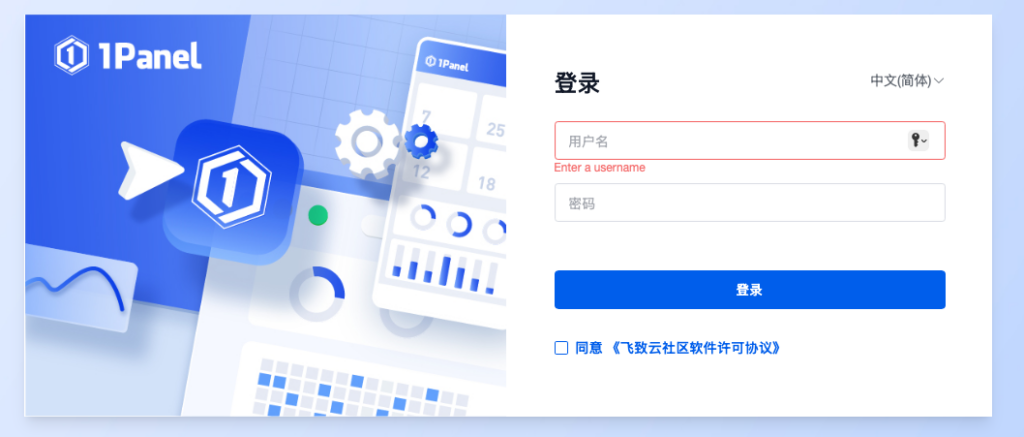
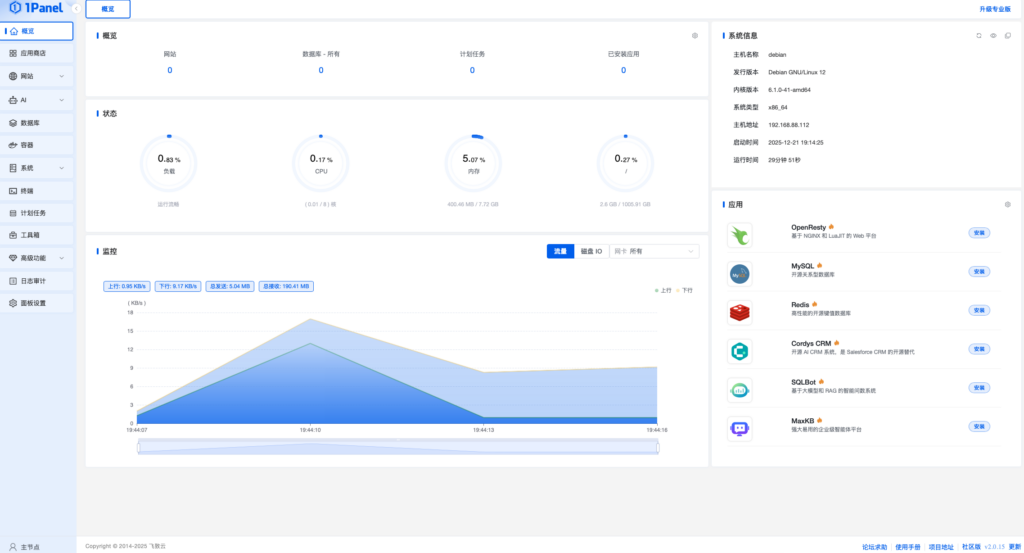
输入你设置的用户名,密码登录
二、部署n8n
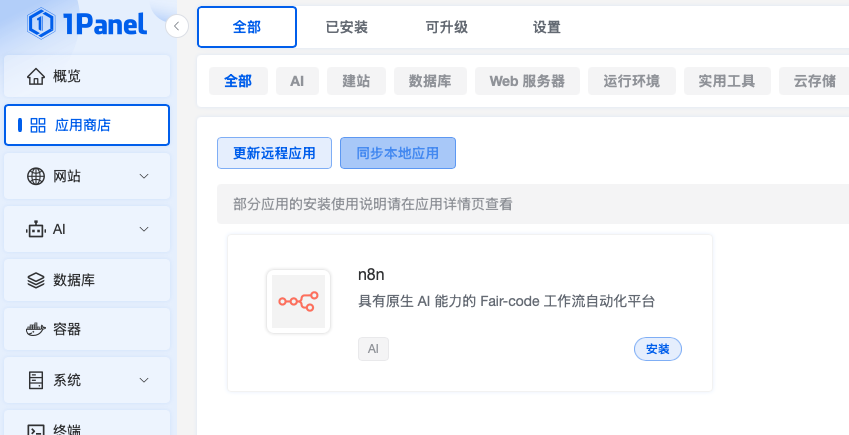
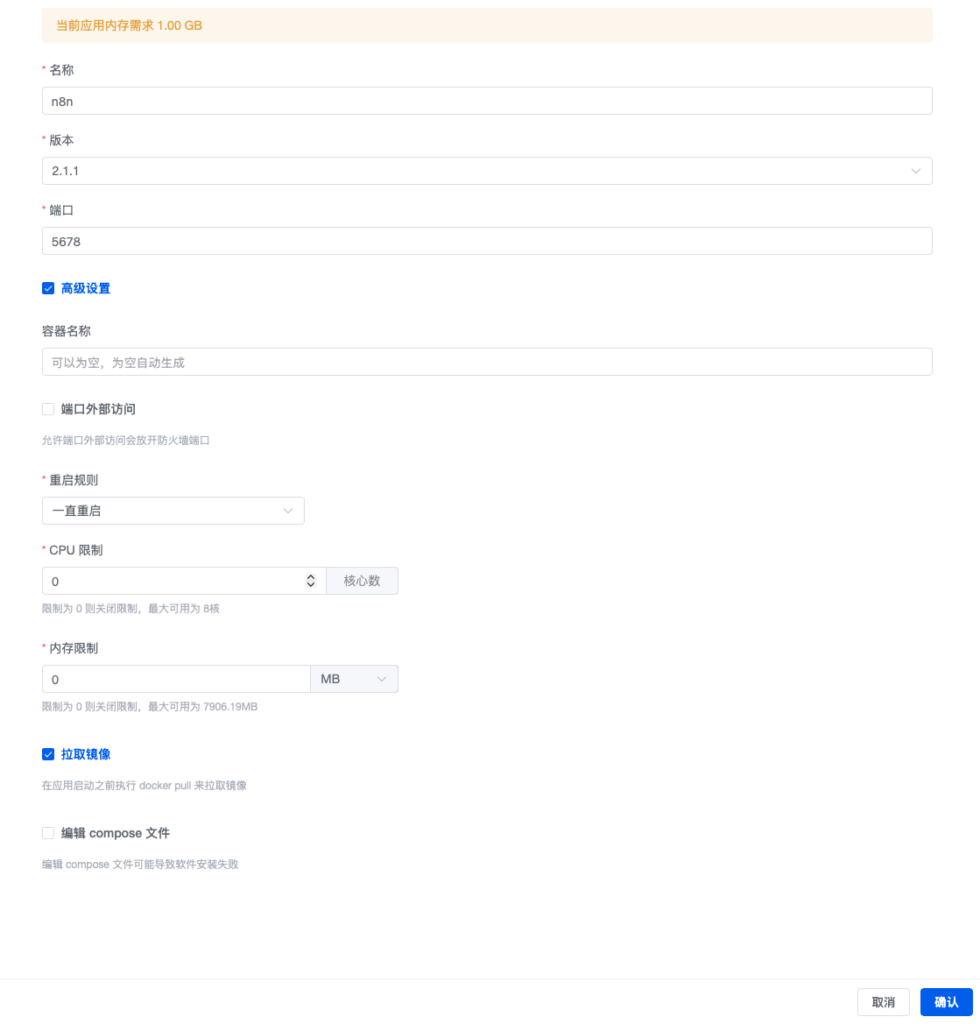
打开应用商店- 搜索n8n – 点击安装
勾选上端口外部访问,但是不要绑定ip地址,然后直接确定安装
如果这时候你只在本地局域网内使用,可以直接打开了 http:// 你的服务器地址:5678
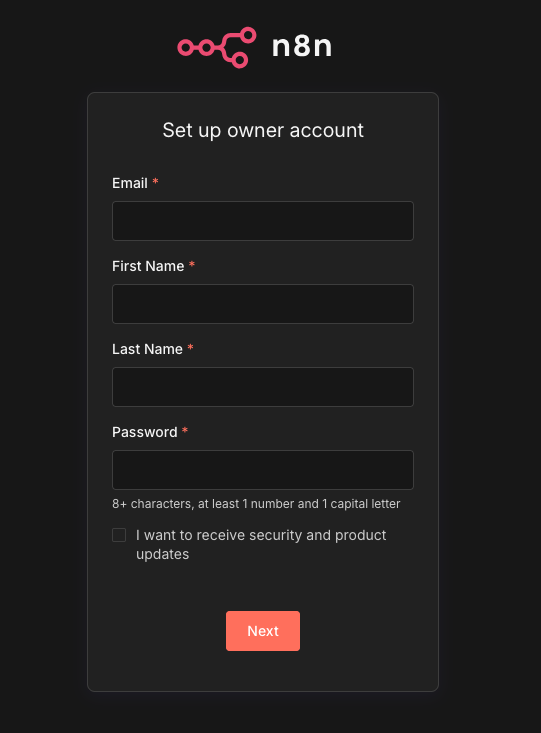
但是我们想在公网打开,所以我们先不登录
# 如果这时候打开提示SSL证书错误,无法登录,也不要慌,先不登录,一会我们用cloudflare代理一下,证书就有了。
部署Firecrawl爬虫
# 安装git工具
apt install git -y
# 下载firecrawl 源码到你的服务器
git clone https://github.com/mendableai/firecrawl.git
#进入下载好的目录
cd firecrawl
#复制配置文件
cp apps/api/.env.example apps/api/.env
#启动安装
docker compose up -d
等待安装完成
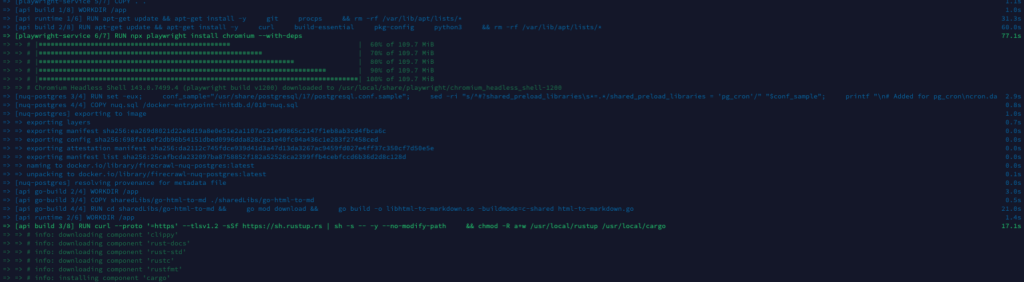
出现这个就安装成功了
[+] up 22/22king to docker.io/library/firecrawl-api:latest 35.0s
✔ Image rabbitmq:3-management Pulled 11.6s
✔ Image firecrawl-api Built 570.7s
✔ Image firecrawl-nuq-postgres Built 570.7s
✔ Image firecrawl-playwright-service Built 570.7s
✔ Network firecrawl_backend Created 0.8s
✔ Container firecrawl-playwright-service-1 Created 4.3s
✔ Container firecrawl-redis-1 Created 4.4s
✔ Container firecrawl-nuq-postgres-1 Created 4.4s
✔ Container firecrawl-rabbitmq-1 Created 4.4s
✔ Container firecrawl-api-1 Created 0.3s
root@debian:/firecrawl#
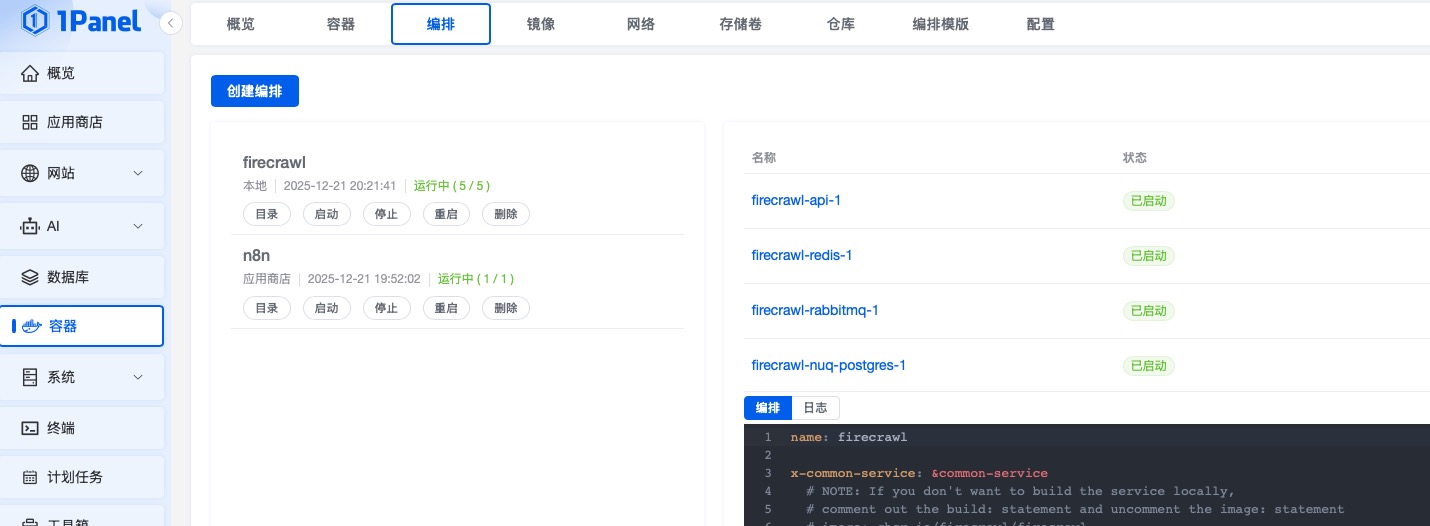
1pannel里也可以看到运行起来了,如果有组件没有运行起来的话,在1pannel里点击一下启动即可

临时测试一下:
curl -X POST http://127.0.0.1:3002/v0/scrape \ -H "Content-Type: application/json" \ -d '{"url": "https://google.com"}'root@debian:/firecrawl# curl -X POST http://127.0.0.1:3002/v0/scrape \ -H “Content-Type: application/json” \ -d ‘{“url”: “https://google.com”}’
{“success”:true,”data”:{“content”:”[Gmail](https://mail.google.com/mail/&ogbl)\n\n[圖片](https://www.google.com/imghp?hl=zh-TW&ogbl)\n\n[](https://www.google.com.hk/intl/zh-TW/about/products)\n\n[登入](https://accounts.google.com/ServiceLogin?hl=zh-TW&passive=true&continue=https://www.google.com/&ec=futura_exp_og_so_72776762_e)\n\n* 上載圖片\n* 上載檔案\n\n\n\nAI 模式\n\n選擇您要提供意見的範疇\n\n* * * *\n \n 顯示更多\n \n 刪除\n \n* \n* 刪除\n \n\n \n\n舉報不當的預測\n\n \n\n無法上載。請使用以下格式的檔案:.avif、.bmp、.jpeg、.pdf、.png、.webp\n\nGoogle 透過以下語言提供: [简体中文](https://www.google.com/setprefs?sig=0_WvGvJUM8pSekXnOpBxPWLlZJ0fg%3D&hl=zh-CN&source=homepage&sa=X&ved=0ahUKEwixvPLZ1s6RAxX7fPUHHdGLNtIQ2ZgBCB0)\n [English](https://www.google.com/setprefs?sig=0_WvGvJUM8pSekXnOpBxPWLlZJ0fg%3D&hl=en&source=homepage&sa=X&ved=0ahUKEwixvPLZ1s6RAxX7fPUHHdGLNtIQ2ZgBCB4)\n\n香港\n\n[關於](https://about.google/?utm_source=google-HK&utm_medium=referral&utm_campaign=hp-footer&fg=1)\n[廣告](https://www.google.com/intl/zh-TW_hk/ads/?subid=ww-ww-et-g-awa-a-g_hpafoot1_1!o2&utm_source=google.com&utm_medium=referral&utm_campaign=google_hpafooter&fg=1)\n[企業](https://www.google.com/services/?subid=ww-ww-et-g-awa-a-g_hpbfoot1_1!o2&utm_source=google.com&utm_medium=referral&utm_campaign=google_hpbfooter&fg=1)\n [搜尋服務的運作方式](https://google.com/search/howsearchworks/?fg=1)\n\n[私隱權政策](https://policies.google.com/privacy?hl=zh-HK&fg=1)\n[條款](https://policies.google.com/terms?hl=zh-HK&fg=1)\n\n設定\n\n[搜尋設定](https://www.google.com/preferences?hl=zh-HK&fg=1)\n\n[進階搜尋](https://google.com/advanced_search?hl=zh-HK&fg=1)\n\n[您在「Google 搜尋」中的資料](https://google.com/history/privacyadvisor/search/unauth?utm_source=googlemenu&fg=1&cctld=com)\n\n[搜尋記錄](https://google.com/history/optout?hl=zh-HK&fg=1)\n\n[搜尋說明](https://support.google.com/websearch/?p=ws_results_help&hl=zh-HK&fg=1)\n\n發送意見\n\n深色主題背景:已關閉\n\nGoogle 應用程式”,”markdown”:”[Gmail](https://mail.google.com/mail/&ogbl)\n\n[圖片](https://www.google.com/imghp?hl=zh-TW&ogbl)\n\n[](https://www.google.com.hk/intl/zh-TW/about/products)\n\n[登入](https://accounts.google.com/ServiceLogin?hl=zh-TW&passive=true&continue=https://www.google.com/&ec=futura_exp_og_so_72776762_e)\n\n* 上載圖片\n* 上載檔案\n\n\n\nAI 模式\n\n選擇您要提供意見的範疇\n\n* * * *\n \n 顯示更多\n \n 刪除\n \n* \n* 刪除\n \n\n \n\n舉報不當的預測\n\n \n\n無法上載。請使用以下格式的檔案:.avif、.bmp、.jpeg、.pdf、.png、.webp\n\nGoogle 透過以下語言提供: [简体中文](https://www.google.com/setprefs?sig=0_WvGvJUM8pSekXnOpBxPWLlZJ0fg%3D&hl=zh-CN&source=homepage&sa=X&ved=0ahUKEwixvPLZ1s6RAxX7fPUHHdGLNtIQ2ZgBCB0)\n [English](https://www.google.com/setprefs?sig=0_WvGvJUM8pSekXnOpBxPWLlZJ0fg%3D&hl=en&source=homepage&sa=X&ved=0ahUKEwixvPLZ1s6RAxX7fPUHHdGLNtIQ2ZgBCB4)\n\n香港\n\n[關於](https://about.google/?utm_source=google-HK&utm_medium=referral&utm_campaign=hp-footer&fg=1)\n[廣告](https://www.google.com/intl/zh-TW_hk/ads/?subid=ww-ww-et-g-awa-a-g_hpafoot1_1!o2&utm_source=google.com&utm_medium=referral&utm_campaign=google_hpafooter&fg=1)\n[企業](https://www.google.com/services/?subid=ww-ww-et-g-awa-a-g_hpbfoot1_1!o2&utm_source=google.com&utm_medium=referral&utm_campaign=google_hpbfooter&fg=1)\n [搜尋服務的運作方式](https://google.com/search/howsearchworks/?fg=1)\n\n[私隱權政策](https://policies.google.com/privacy?hl=zh-HK&fg=1)\n[條款](https://policies.google.com/terms?hl=zh-HK&fg=1)\n\n設定\n\n[搜尋設定](https://www.google.com/preferences?hl=zh-HK&fg=1)\n\n[進階搜尋](https://google.com/advanced_search?hl=zh-HK&fg=1)\n\n[您在「Google 搜尋」中的資料](https://google.com/history/privacyadvisor/search/unauth?utm_source=googlemenu&fg=1&cctld=com)\n\n[搜尋記錄](https://google.com/history/optout?hl=zh-HK&fg=1)\n\n[搜尋說明](https://support.google.com/websearch/?p=ws_results_help&hl=zh-HK&fg=1)\n\n發送意見\n\n深色主題背景:已關閉\n\nGoogle 應用程式”,”linksOnPage”:[“https://mail.google.com/mail/&ogbl”,”https://www.google.com/imghp?hl=zh-TW&ogbl”,”https://www.google.com.hk/intl/zh-TW/about/products”,”https://accounts.google.com/ServiceLogin?hl=zh-TW&passive=true&continue=https://www.google.com/&ec=futura_exp_og_so_72776762_e”,”https://www.google.com/setprefs?sig=0_WvGvJUM8pSekXnOpBxPWLlZJ0fg%3D&hl=zh-CN&source=homepage&sa=X&ved=0ahUKEwixvPLZ1s6RAxX7fPUHHdGLNtIQ2ZgBCB0″,”https://www.google.com/setprefs?sig=0_WvGvJUM8pSekXnOpBxPWLlZJ0fg%3D&hl=en&source=homepage&sa=X&ved=0ahUKEwixvPLZ1s6RAxX7fPUHHdGLNtIQ2ZgBCB4″,”https://about.google/?utm_source=google-HK&utm_medium=referral&utm_campaign=hp-footer&fg=1″,”https://www.google.com/intl/zh-TW_hk/ads/?subid=ww-ww-et-g-awa-a-g_hpafoot1_1!o2&utm_source=google.com&utm_medium=referral&utm_campaign=google_hpafooter&fg=1″,”https://www.google.com/services/?subid=ww-ww-et-g-awa-a-g_hpbfoot1_1!o2&utm_source=google.com&utm_medium=referral&utm_campaign=google_hpbfooter&fg=1″,”https://google.com/search/howsearchworks/?fg=1″,”https://policies.google.com/privacy?hl=zh-HK&fg=1″,”https://policies.google.com/terms?hl=zh-HK&fg=1″,”https://www.google.com/preferences?hl=zh-HK&fg=1″,”https://google.com/advanced_search?hl=zh-HK&fg=1″,”https://google.com/history/privacyadvisor/search/unauth?utm_source=googlemenu&fg=1&cctld=com”,”https://google.com/history/optout?hl=zh-HK&fg=1″,”https://support.google.com/websearch/?p=ws_results_help&hl=zh-HK&fg=1″],”metadata”:{“url”:”https://google.com”,”image”:”/images/branding/googleg/1x/googleg_standard_color_128dp.png”,”title”:”Google”,”favicon”:”https://www.gstatic.com/images/branding/searchlogo/ico/favicon.ico”,”language”:”zh-HK”,”referrer”:”origin”,”scrapeId”:”019b40e0-0379-709b-850c-d3a111f7f549″,”proxyUsed”:”basic”,”sourceURL”:”https://google.com”,”contentType”:”text/html; charset=UTF-8″,”creditsUsed”:1,”pageStatusCode”:200}},”returnCode”:200}curl: (3) URL using bad/illegal format or missing URL
curl: (3) URL using bad/illegal format or missing URL
root@debian:/firecrawl#
出了这一大堆** 就行了。
让n8n可以在外网访问
如果你需要n8n可以在外网访问(无需公网IP),可以用cloudflare进行代理
首先打开cloudflare 地址:https://www.cloudflare.com/zh-cn/ 注册一个账号,或者直接用google账号登录。
你需要一个域名,任意运营商注册的都行(比如阿里云、腾讯云),你也可以直接在cloudflare买一个,有的域名很便宜,几块钱一年。
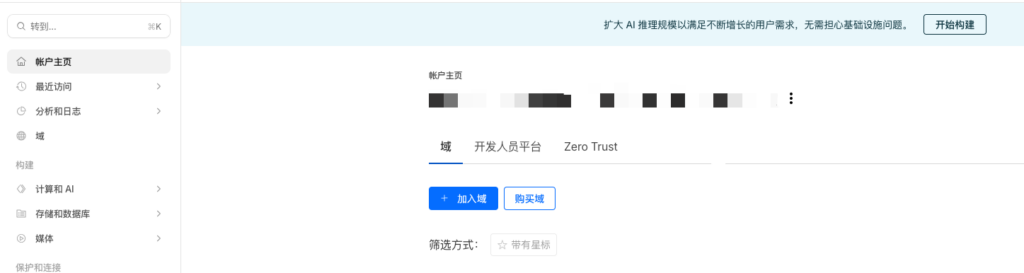
如果你有现成的域名,或者注册在其他的服务商,选择加入域,如果你直接在cloudflare买域名,选择购买域。
域名托管到cloudflare的方法
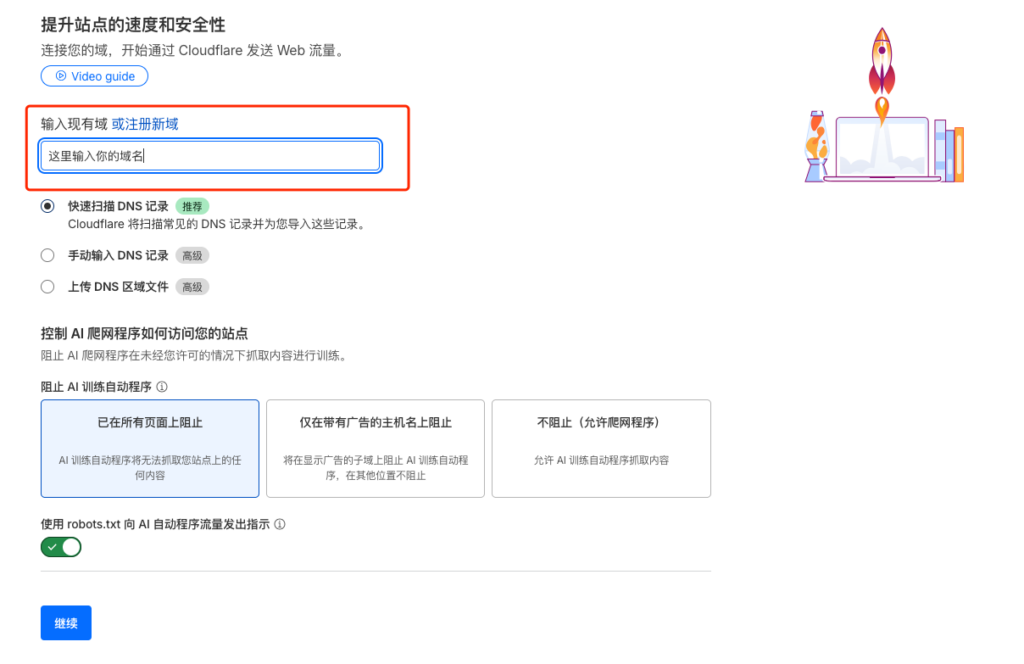
我们点击 加入域,然后输入你现有的域名
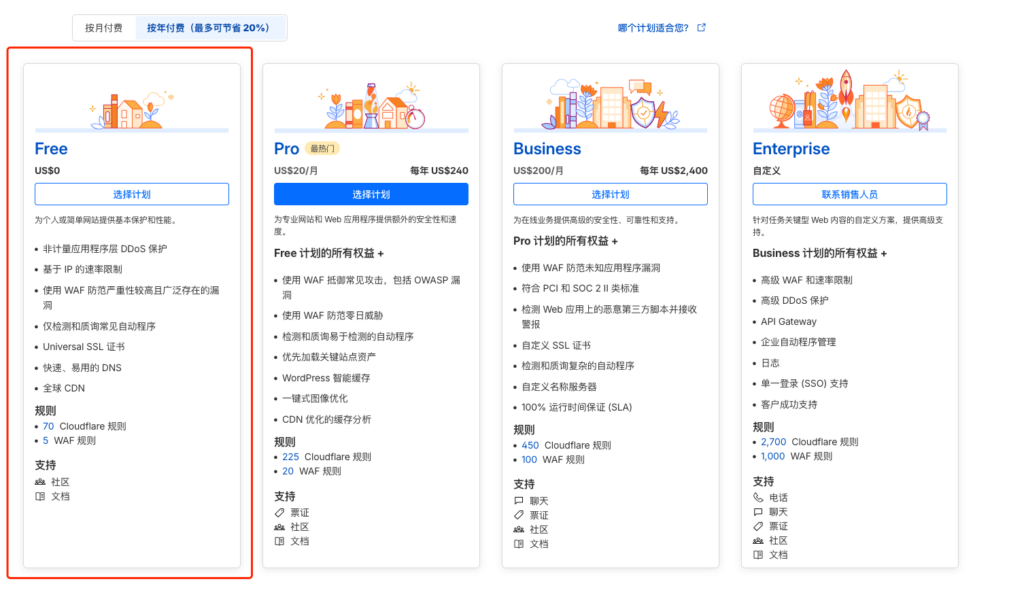
选择免费计划即可
然后到你的域名服务商(比如阿里云、腾讯云),把你的dns服务器更换成cloudflare的
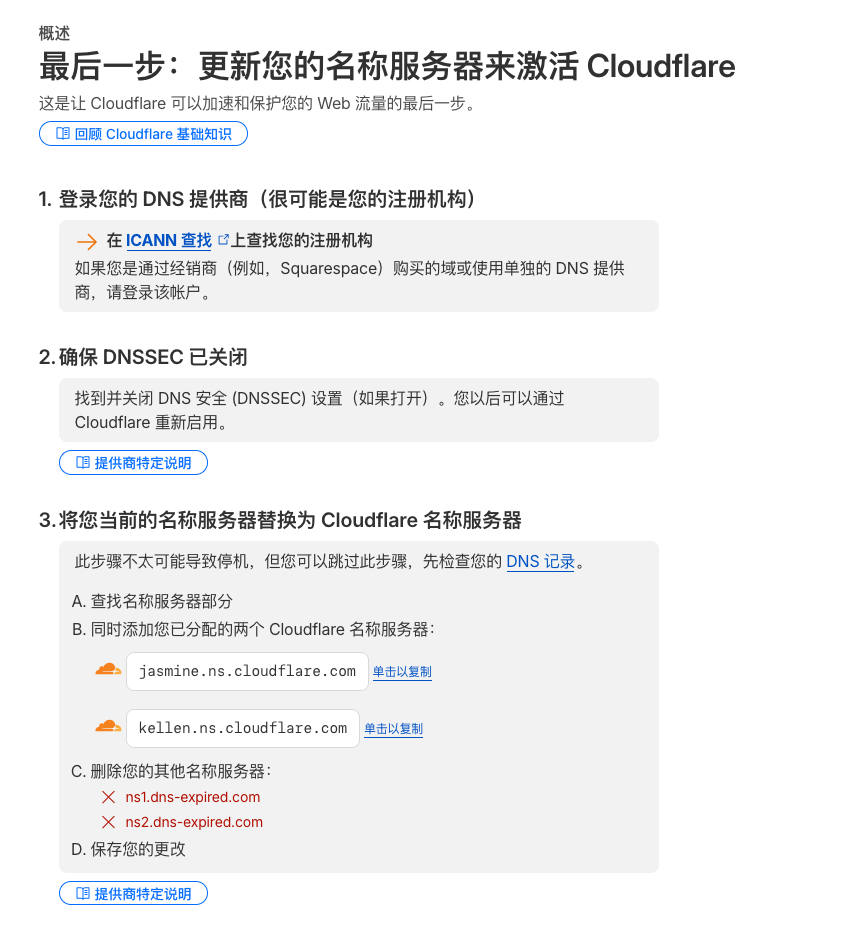
就这俩:
jasmine.ns.cloudflare.com
kellen.ns.cloudflare.com
然后需要等待几个小时,等dns更换完成,我们就可以在cloudflare中使用了。
使用cloudflare来代理你的服务器(n8n)
进入到cloudflare后台,打开Zero Trust
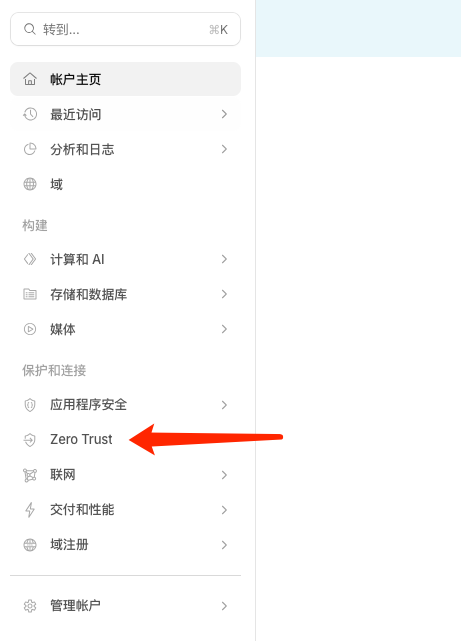
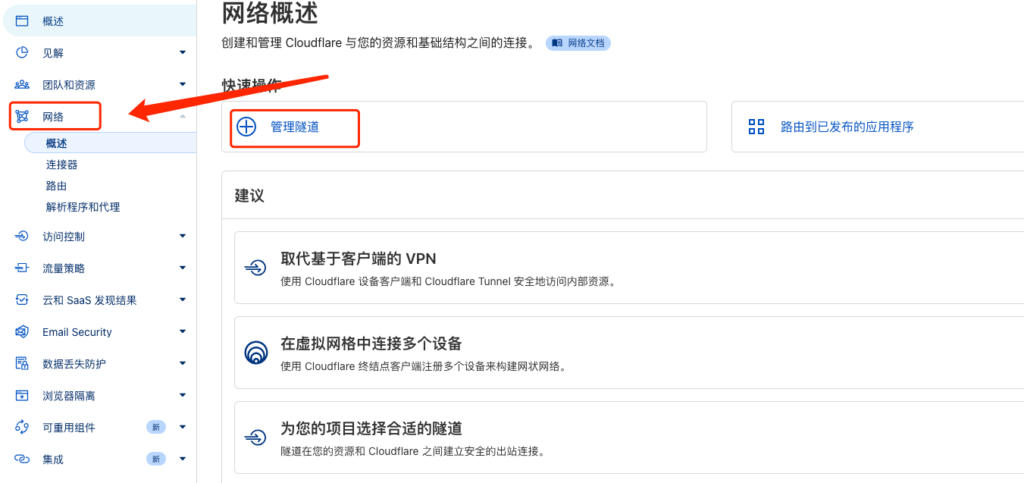
然后打开网络- 管理隧道
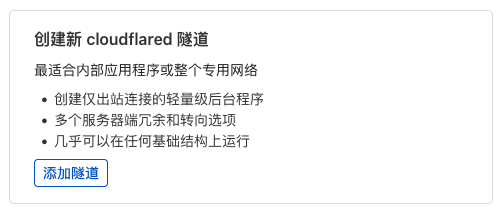
然后创建新 cloudflared隧道
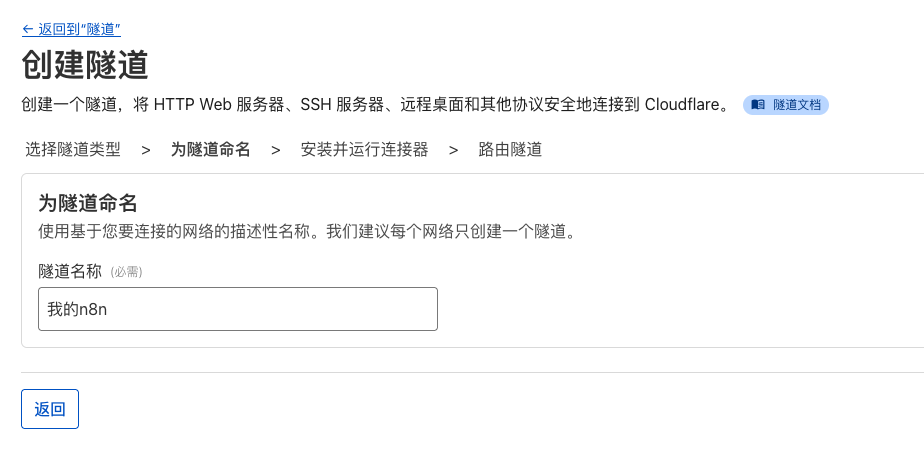
随便起个隧道名字
把一下这两条复制到你的debian的ssh中,注意顺序
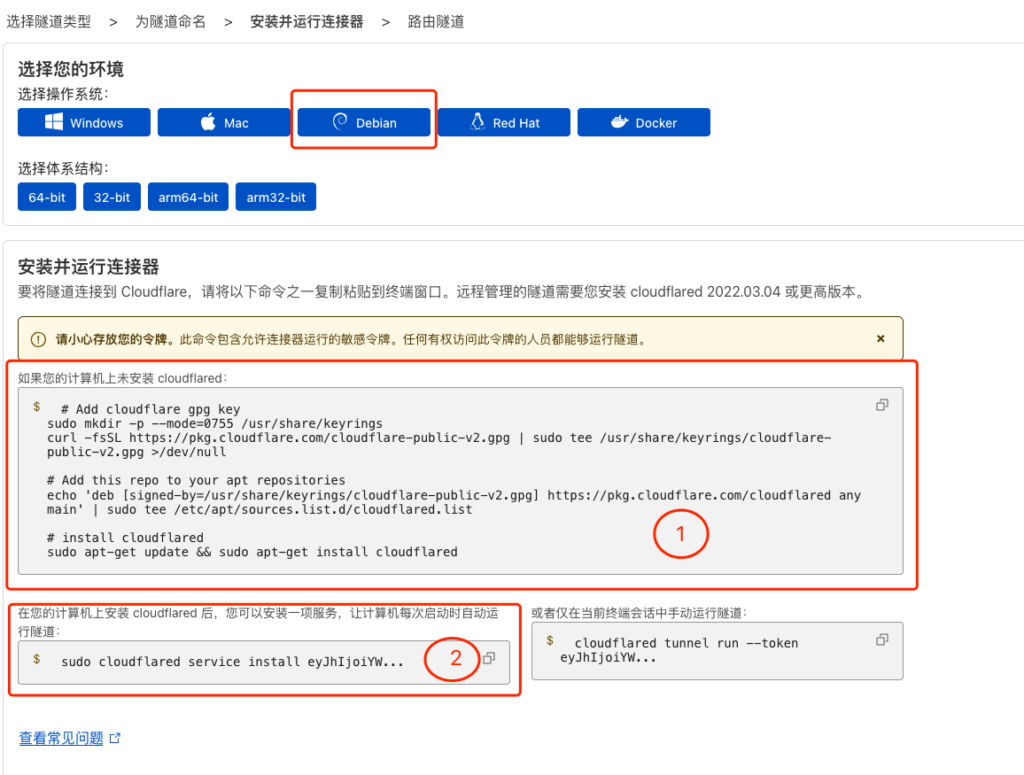
主要这里面的命令是带sudo的,如果你在root下,去掉sudo (就是把命令行中的sudo去掉,然后粘贴进去回车)
当页面下方出现这个,就代表你的服务器和cloudflare连上了

设置一个二级域名前缀,然后域选择你的域名
服务选择http(注意啊是http不是https),然后url 输入:localhost:5678 ,点击完成
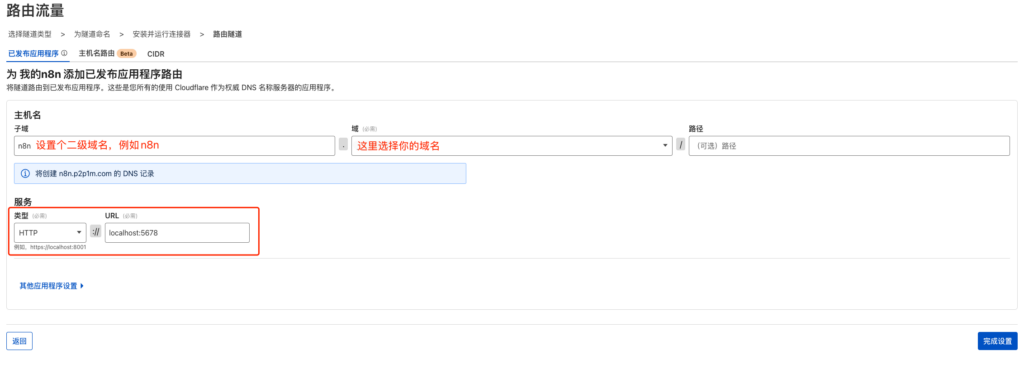
至此,你就可以使用你刚才设置的域名来从任意公网访问你的n8n了(不用带端口)
证书也有了,也有了你的webhook公网地址了。


暂无评论内容